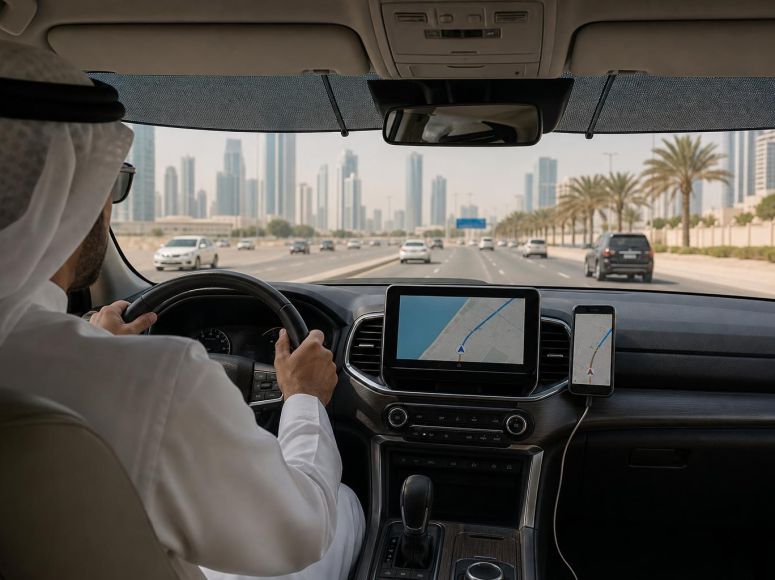
Apple CarPlay and Android Auto make navigation, calls and music far easier to use on the road, but they depend on a phone that is connected, charged and operating within its normal temperature range. In Egypt, the Gulf and other hot parts of the Middle East and North Africa, a phone left in direct sun or charging inside a heat-soaked cabin can overheat quickly. The result may be a frozen map, a black infotainment screen, slow performance or a complete disconnect.
Not every projection failure is caused by heat. A worn USB cable, dirty phone port, outdated software or a vehicle infotainment fault can produce similar symptoms. The key is to recognise the pattern, make a few safe checks and avoid fixes that create distractions while driving.
How heat affects CarPlay and Android Auto
Both wired and wireless phone-projection systems rely on your phone doing continuous work. It is handling GPS, mobile data, screen output, audio, background apps and often battery charging at the same time. Navigation in particular can be demanding because the phone must maintain location services and data connection for long periods.
When a phone gets too hot, it may reduce performance to protect its battery and internal components. It can dim its screen, pause or limit charging, slow apps, interrupt wireless communications or display a temperature warning. A cable connection may then appear to fail even though the real problem is the phone’s thermal protection.
Cabin temperatures can rise sharply when a car is parked in direct sun. A phone mounted near the windscreen, placed on top of the dashboard or left in a closed centre-console compartment while charging is especially vulnerable. In Gulf summers and hot inland areas of North Africa, this can happen even on relatively short trips.
Common symptoms and what they usually suggest
- The connection drops after 15 to 30 minutes of navigation: heat buildup, a weak cable or an overloaded phone is likely.
- The phone charges slowly or stops charging: the phone may be hot, the vehicle USB outlet may provide limited power, or the cable may be damaged.
- Wireless CarPlay or Android Auto repeatedly reconnects: possible phone overheating, Wi-Fi/Bluetooth interference, poor pairing or an infotainment software issue.
- The system disconnects when driving over bumps: suspect a loose cable, worn connector or debris in the phone’s charging port.
- Only one phone has problems in the same car: start with that phone’s cable, port, settings, battery condition and software.
- Several phones fail in the same vehicle: the car’s USB port, infotainment unit or its software may need inspection.
First, rule out the simple connection faults
Before blaming the climate, inspect the physical connection. Modern USB-C, Lightning and USB-A connectors can appear secure while still having a poor electrical connection. A cable that works for ordinary charging may also be unreliable for the constant data transfer required by CarPlay or Android Auto.
Use a suitable data cable
Try a short, good-quality cable that is designed for both charging and data transfer. Avoid visibly bent, frayed or loose cables, and be cautious with very cheap unbranded leads. If the cable has been left in a hot car for months, inspect its ends and outer insulation carefully.
For a wired system, test with a known-good cable before replacing any vehicle part. If the problem disappears, keep the replacement cable as the dedicated in-car cable rather than repeatedly moving it between home, office and vehicle.
Check the phone port safely
Pocket lint and fine dust can collect in a phone port and prevent the plug from seating fully. Switch off the phone if possible, inspect the port in good light and use a non-metallic tool only if you are confident doing so. Do not force anything into the connector and do not spray liquid cleaners into it. If debris is compacted or the port feels loose, a reputable phone repair provider is the safer option.
Try the vehicle’s original USB port
Some vehicles have USB sockets intended mainly for charging, while others support data and phone projection. Use the port identified in the owner’s manual for CarPlay or Android Auto. Do not assume every USB socket in the cabin has the same function.
Keep the phone cool without compromising visibility
The most effective solution is often reducing heat before the phone reaches its limit. A cooled cabin helps, but placement and charging load still matter.
- Start cooling the cabin before connecting. If practical, ventilate the car briefly and run the air conditioning before placing the phone on a mount.
- Keep the phone out of direct sunlight. Do not rest it on the dashboard or mount it where sun falls directly on the back of the device.
- Avoid blocking an air vent. A phone mount should not obstruct airflow, controls or your view of the road. In suitable vehicles, a vent mount can provide gentle cooling, but do not aim extremely cold air at a device already covered in condensation.
- Remove a thick insulated case on very hot journeys. Cases can retain heat, particularly during charging and navigation. Keep the case somewhere secure and refit it when needed.
- Use a sunshade when parked. This reduces cabin heat load and gives the phone a better starting temperature for the journey.
- Do not leave the phone in the car. Beyond the risk of heat damage, it can expose personal data and attract theft.
Wired versus wireless: which is more reliable in hot weather?
Neither connection type is automatically best for every driver. A wired connection generally provides a more direct data link and may be more stable when wireless signals are congested. However, wired use often charges the phone at the same time, adding heat during a long navigation session.
Wireless CarPlay and Android Auto avoid cable wear and can be convenient for short urban journeys. But wireless projection uses Wi-Fi and Bluetooth alongside the phone’s navigation and mobile-data functions, which can add to power use and heat. If your phone tends to overheat during wireless projection, a wired connection with a reliable cable may help. If it overheats while wired and charging, wireless use may reduce charging heat—but only if the phone remains stable.
Test one change at a time on a familiar route. For example, use the same navigation app with a different cable, then compare it with a wireless session. This makes it easier to identify the true cause.
Settings and software checks worth doing
Software should not be the first assumption when the phone is visibly hot, but it is worth checking once basic cooling and cable issues have been addressed.
- Install available updates for the phone operating system and the navigation app.
- Check the car maker’s official service channels for infotainment updates or technical campaigns relevant to your vehicle.
- Restart the phone and the infotainment system according to the vehicle manual.
- For wireless systems, remove the vehicle from the phone’s saved connections and pair it again if disconnections persist.
- Close demanding apps that are not needed for the journey, especially video, gaming or camera apps running in the background.
- Confirm that the phone has adequate free storage; an almost-full device can behave slowly and unreliably.
Only change settings while parked. Do not troubleshoot pairing, cables or apps while the vehicle is moving.
When the vehicle may be at fault
If multiple compatible phones disconnect through the same data-capable port, or the infotainment system reboots, freezes or loses other functions, arrange a check with a qualified workshop or authorised dealer. Note whether the fault happens with wired or wireless use, how long the drive lasts, outside temperature, the exact USB port used and any messages shown on the screen. This information can help a technician reproduce the problem.
A port that becomes unusually hot, smells burnt, feels loose or shows visible damage should not be used. Stop using it and have it inspected. Never try to repair a vehicle USB socket with metal objects or improvised adapters.
A practical pre-drive routine for hot days
For dependable navigation during a summer commute or a long intercity drive, use this quick routine:
- Cool the cabin and fit a sunshade when parking is unavoidable.
- Connect using a clean, known-good data cable, or confirm wireless projection is paired before moving off.
- Place the phone away from direct sun without blocking your view or air vents.
- Set your destination, audio and calls before driving.
- If the phone displays a temperature warning, stop using it for projection, move it out of sunlight and allow it to cool naturally.
Conclusion
CarPlay and Android Auto faults in MENA are often manageable, but summer heat makes small weaknesses far more obvious. Start with the cable, phone port and correct vehicle USB socket, then reduce the phone’s heat exposure and charging load. If failures affect multiple phones or continue after these checks, the infotainment system or vehicle connection should be professionally assessed. A cool, securely connected phone is safer, more reliable and less likely to interrupt directions when you need them most.